42Gears Mobile Email Management (MEM)
Author: 42Gears Team
Emails remain the structural backbone of corporate communication, pacing ahead of collaborative platforms, instant messaging, and enterprise social networks. Allowing employees to sync corporate email environments with heterogeneous mobile fleets vastly optimizes operational velocity. However, it also introduces data governance liabilities, leakage risks, and unmanaged network exposures.
Mobile Email Management (MEM) mitigates these risks. MEM provides enterprise IT administrators with the administrative controls required to govern device authentication vectors, protect email data at rest or in transit, isolate personal payloads from business assets, and enforce end-to-end security compliance.
The Security Challenges of Mobile Email
While mobile email access improves productivity, it creates significant security challenges for the enterprise:
- Cross-Platform Fragmentation: Standardizing email security configurations across diverse devices, operating systems, and native clients.
- Inter-App Data Leakage: Preventing corporate assets and attachments from being read, parsed, or exfiltrated by consumer-grade personal applications.
- Unmanaged Perimeter Threats: Blocking lost, stolen, or un-enrolled endpoints from accessing active corporate communication directories.
- Unsecured Transport Frameworks: Restricting access over unencrypted public Wi-Fi networks prone to credential sniffing and data interception.
- Malicious Forwarding: Countering insider threats or accidental disclosures caused by transferring corporate assets to personal storage accounts.
42Gears MEM — Key Features
42Gears UEM deeply integrates with corporate email servers (such as Microsoft Exchange and Microsoft 365) to control access. Using PowerShell integration, 42Gears UEM acts as a programmatic administrator within the Exchange infrastructure, automatically issuing allow or deny rules to Exchange ActiveSync (EAS) based on the device's live compliance status.
MEM Deployment Workflow (PowerShell Integration)
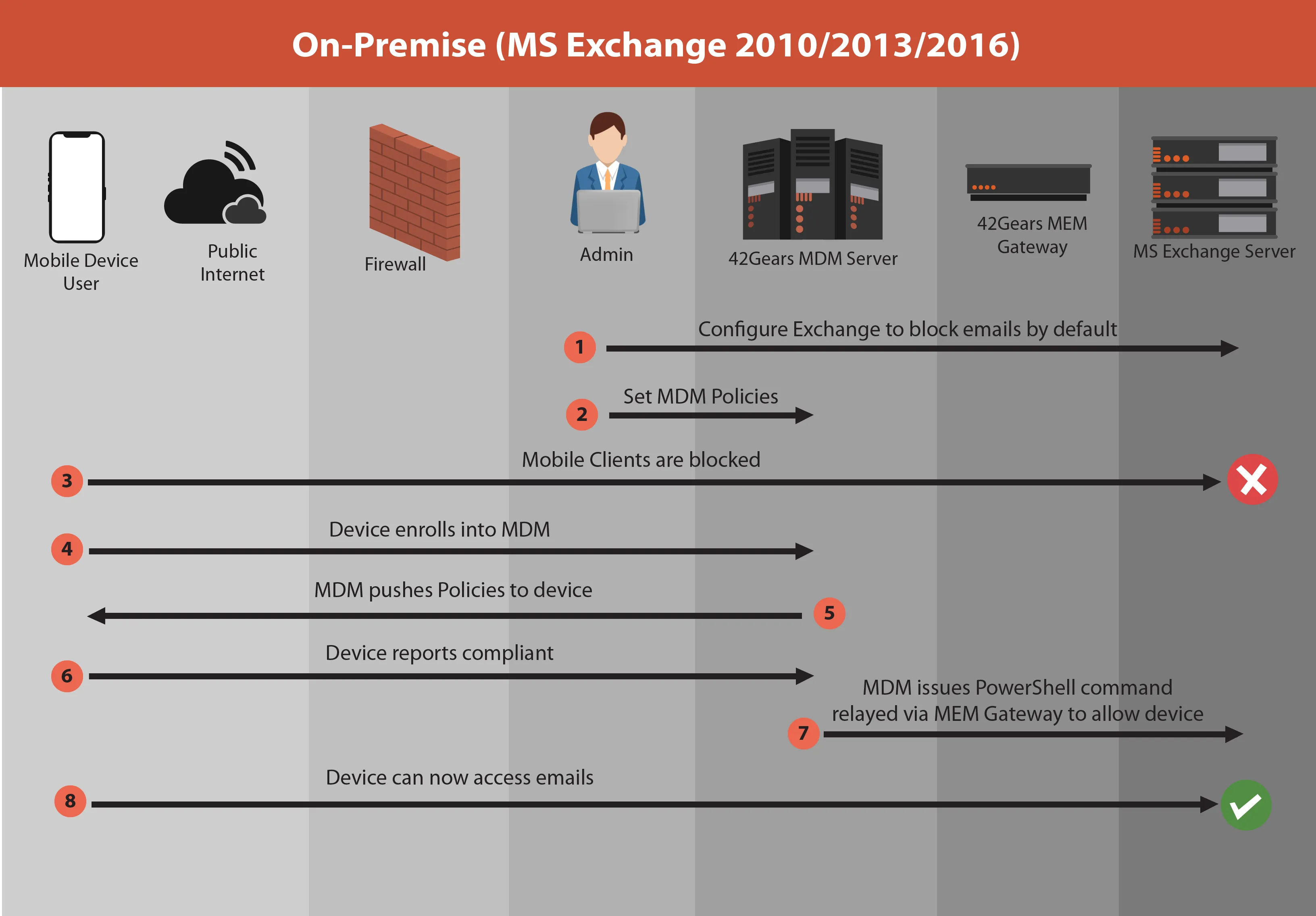
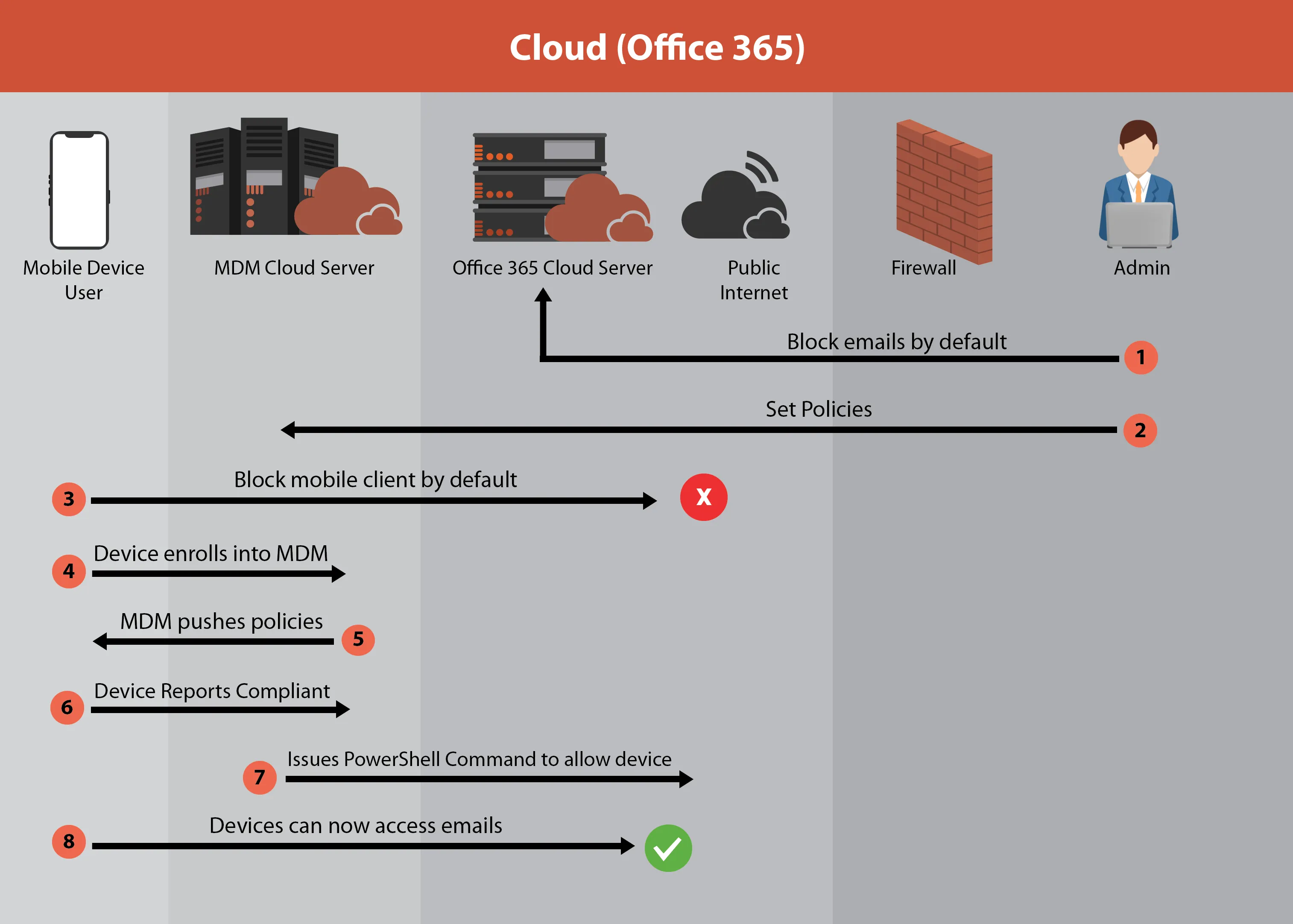
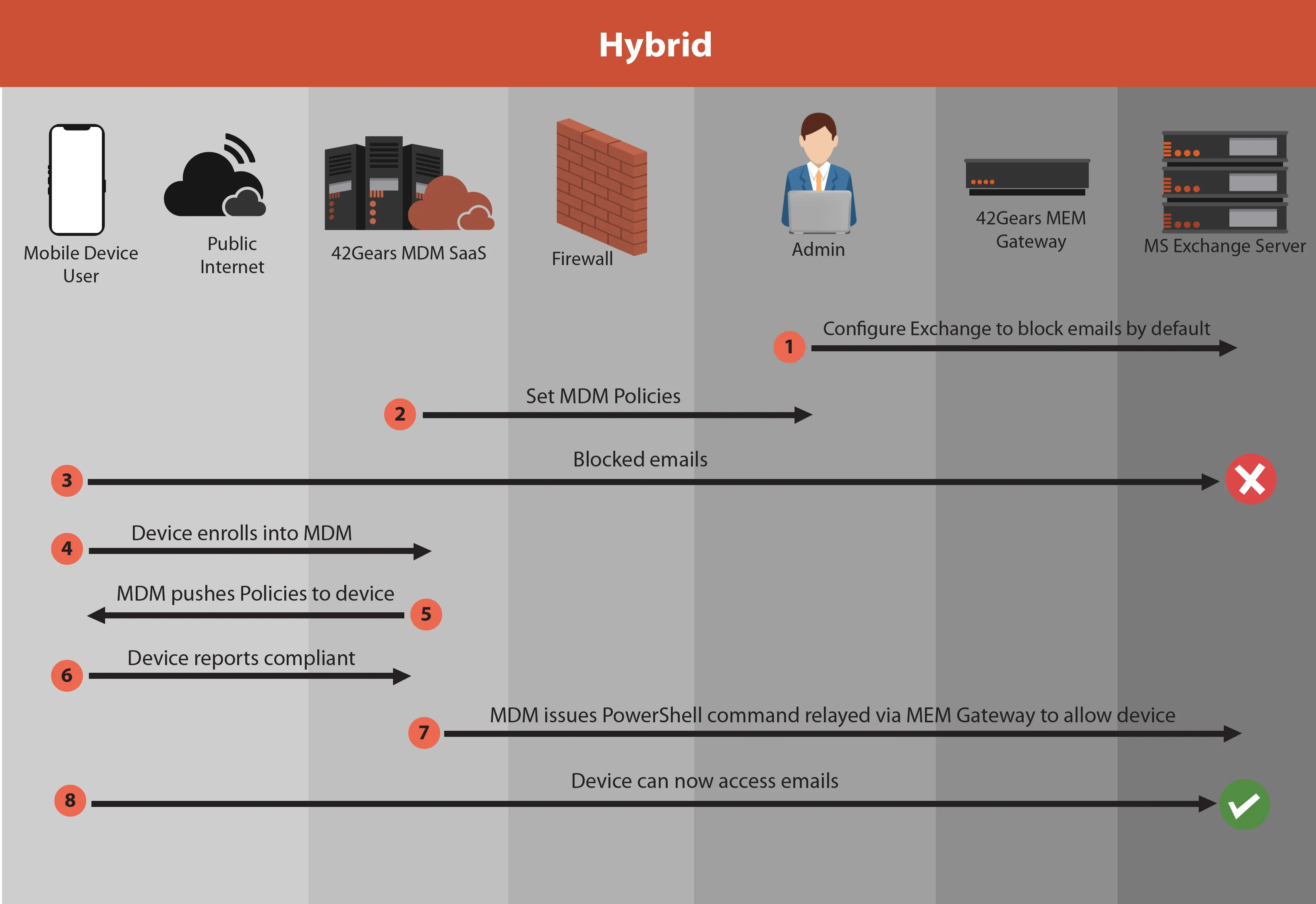
01. MS Exchange is configured to block all mobile email access by default.
02. Administrator defines compliance and security policies within the SureMDM Console.
03. Un-enrolled user tries to connect and is automatically blocked by the Exchange Server.
04. End-user enrolls their mobile device into the SureMDM management system.
05. SureMDM pushes designated configuration profiles and security baselines OTA.
06. Device evaluates successfully and reports a "Compliant" status back to the server.
07. SureMDM sends an automated PowerShell command to MS Exchange to whitelist the device ID.
08. The managed device establishes a secure connection and begins syncing mail folders.
Infrastructure Topologies Supported
Supported OS Feature Matrix
1. Configuring Cloud-Based Microsoft 365 Deployment
Microsoft 365 integrations communicate directly with the cloud service and do not require installing an on-premise connector proxy. Follow these steps to configure your deployment:
- Log into the 42Gears UEM Console and navigate to Account Settings.
- Click on Mobile Email Management.
- Check the box to Enable Exchange ActiveSync.
- Select Microsoft 365 as your primary platform type.
- Input your designated PowerShell Gateway URL alongside the PowerShell Admin Username and Password credentials.
- Click Done to finalize and bind the cloud service connection layer.
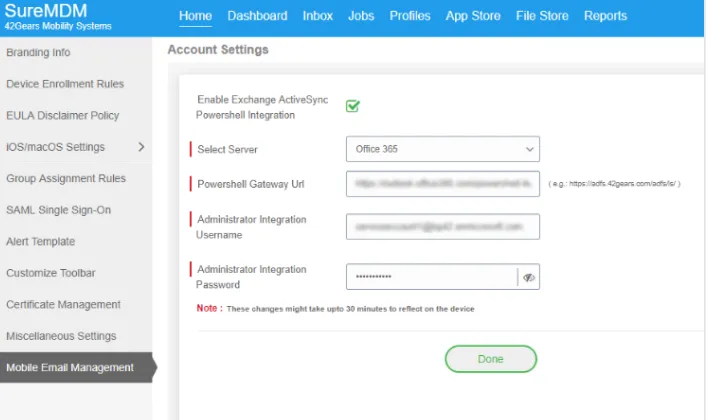
2. Configuring On-Premise and Hybrid Topologies
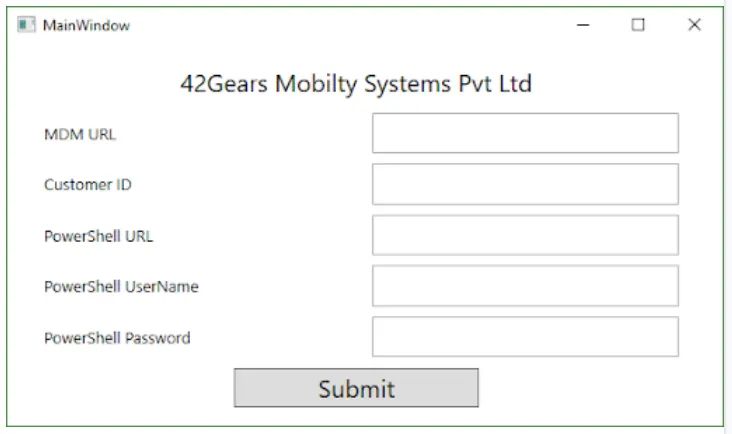
Deploying an on-premise Exchange server infrastructure requires installing the **42Gears UEM Connector** inside your internal network. This proxy broker facilitates secure communication between the external UEM console and your local Exchange server environment.
Console-Side Setup Steps:
- Inside Account Settings, click Mobile Email Management.
- Enable Exchange ActiveSync and select the standard Exchange ActiveSync platform option.
- Enter your configured local PowerShell Gateway URL and click Done to save.
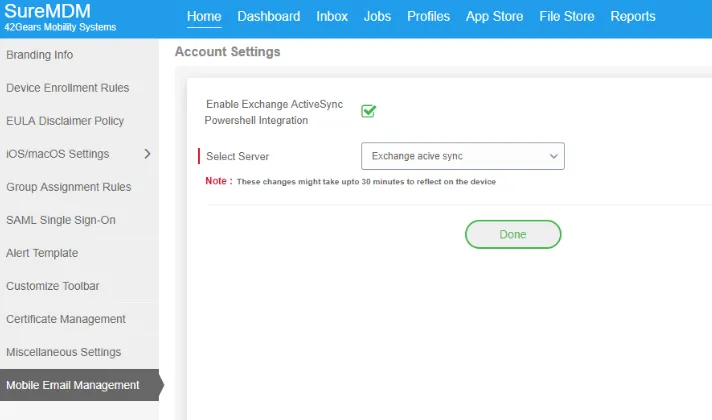
Local UEM Connector Installation Parameters:
Launch the installation wizard inside your local secure perimeter and supply the following directory properties to establish a verified data link:
- MDM URL: Point directly to your active console path instance without appending protocol descriptors (e.g., yourcompany.suremdm.io).
- Customer ID: Your unique account account ID visible inside the console platform interface.
- PowerShell URL: The local internal directory mapping pointing to your Exchange endpoint (e.g., https://<FQDN>/Powershell).
- Credentials: Input the dedicated service account username and password holding sufficient administrative rights over Exchange ActiveSync policies.
To streamline cross-platform deployments, use target profiles with dynamic wildcards $emailaddress$ or %emailaddress%. These parameters automatically resolve to the enrolled user's unique identity traits during deployment.
A. Android Enterprise Ecosystem Deployment
Navigate to Profiles > Android > Add > Mail Configuration > Using Gmail App. Define the remote Exchange host destination and apply dynamic wildcards to automate individual user mailbox configurations.
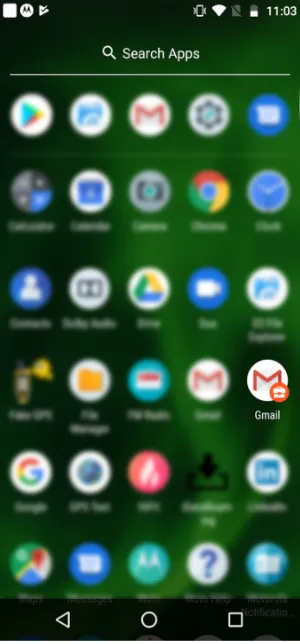
Once deployed, the pre-configured corporate Gmail app runs securely isolated within the Android Work Profile.
B. iOS Ecosystem Profile Configuration
Navigate to Profiles > iOS > Add > Exchange ActiveSync > Configure. Map the properties using structural parameters to lock downstream setups to the native iOS Mail system client application.
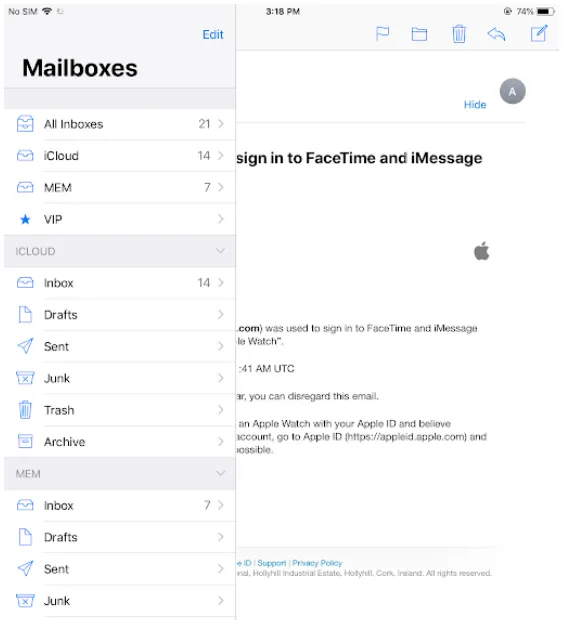
Upon receiving the configuration, the device prompts the user for their account password to establish secure cryptographic syncing.
C. Windows Ecosystem Configuration
Navigate to Profiles > Windows > Add > Exchange ActiveSync > Configure. This profile syncs enterprise mail folders, active calendar schedules, corporate contact cards, and reminders to your Windows endpoints.
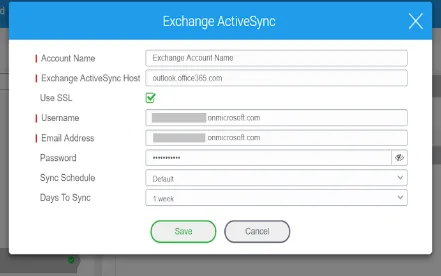
42Gears UEM includes advanced platform-level Data Loss Prevention (DLP) frameworks designed to block unauthorized cross-app communications, prevent data leaks, and secure business assets across key operating systems:
Android Security Profiles
- Account Separation: Prevents corporate messages from being moved or forwarded to unmanaged personal profiles.
- Attachment Restrictions: Limits corporate email attachments to opening within verified, sandboxed work container viewer apps.
- Screen Capture Disabling: Disables platform-level screen cap functionality inside secure mail clients. (Profiles -> Android -> System Settings)
- Clipboard Isolation: Blocks cross-profile copy-and-paste actions from enterprise workspaces to personal apps.


iOS Security Profiles
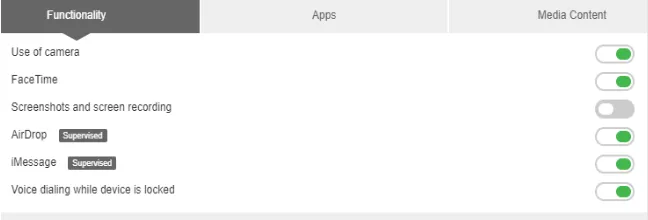
- Media Recording Block: Disables built-in screenshots and display-capture streams on managed company endpoints.
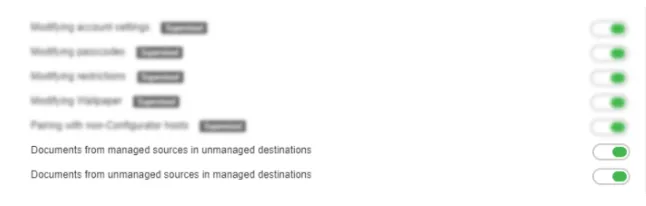
- Sandbox Destination Routing: Isolates managed source documents to prevent them from opening inside unmanaged consumer destinations.
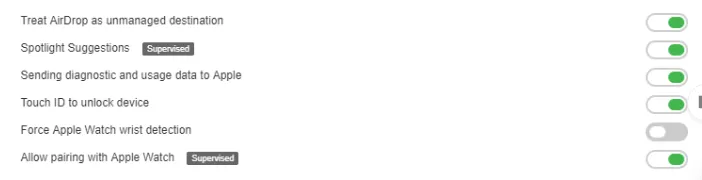
- AirDrop Leak Prevention: Labels AirDrop transfers as unmanaged destinations, blocking users from wireless-beaming corporate data to non-company devices.
Windows Security Profiles
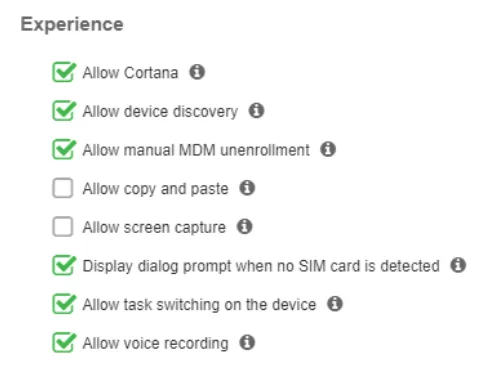
- Display Stream Interception: Blocks standard screen capture APIs within managed application frameworks.
- Clipboard Enforcement Rules: Restricts system clipboards to prevent copy-and-paste leaks into personal web apps.
Implementing a dedicated Mobile Email Management (MEM) strategy is essential for modern enterprise data governance. The 42Gears MEM framework provides cross-platform support for Android, iOS, and Windows ecosystems, ensuring business data remains secure both at rest and in transit.
By automating conditional access, containerizing sensitive communications, and enforcing robust platform-level DLP rules, 42Gears enables seamless workforce mobility without compromising corporate security.