People often ask how to run only one app on Android devices, or how to lock an Android device to run only one app. Google searches like “Android allows only one app” and “Android tablet lock to one app” are very popular, which shows that everyone wants an easy way to secure their devices.
The answer is Android Single Application Mode or Single App Mode.
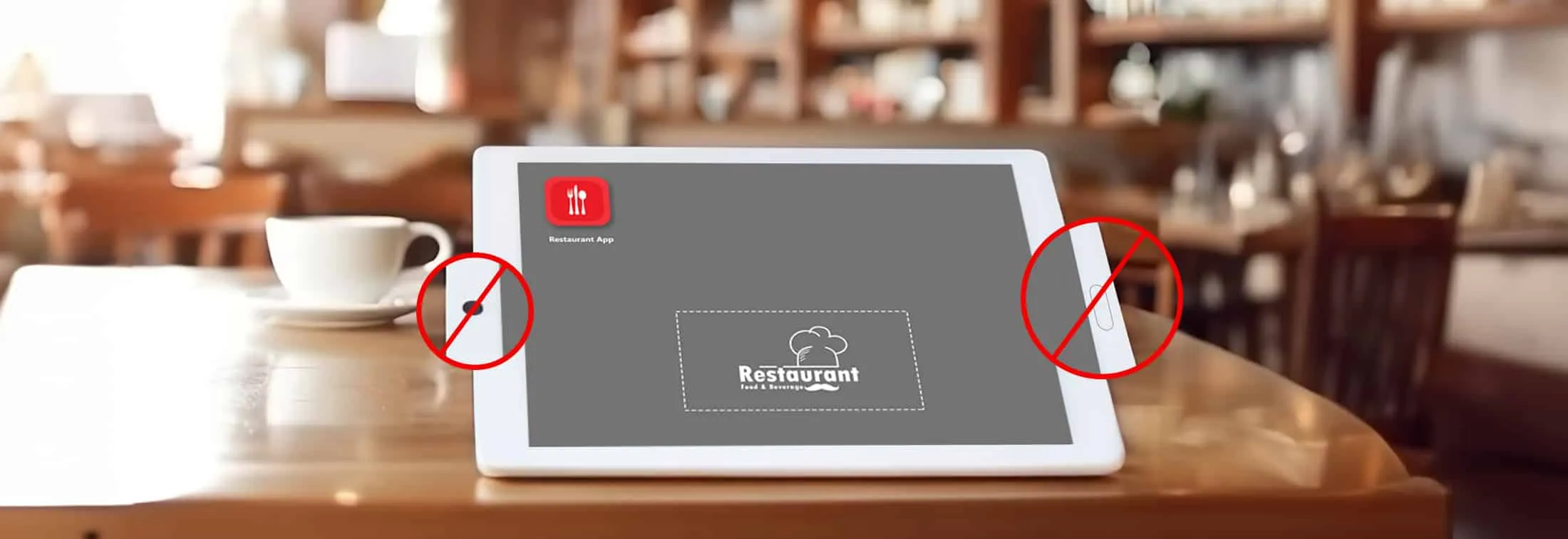
As the name implies, Android Single Application Mode only allows one application to run at a time. The single app mode prevents Android device users from quitting the app while using it, and if the device reboots, the app launches automatically.
What is Android Single App Kiosk Mode?
Android Single App Kiosk Mode restricts a device to running only a specific application, thereby preventing access to other apps, and device settings. It is commonly used in scenarios like dedicated devices, rugged mobile computing devices, digital signage, or retail displays. Users are limited to the certain app, and they are unable to perform anything else on the device. However, if you want to know "how to lock apps on android" so that users are not able to access them easily, you might want to look at some 3rd party parental control apps on Google Play.
What are the benefits of Single Application Mode for Android?
Maintaining optimal employee productivity is a constant challenge for businesses today, and this is especially true for situations where specific tasks require dedicated attention, such as in public kiosks, educational settings, or point-of-sale systems.
The Android Single Application Mode offers a solution to these challenges, transforming regular Android devices into focused tools that boost user engagement, simplify operations, and enhance security – all while remaining cost-effective.
Benefits of using Single Application Mode:
Enhanced User Focus:
By restricting access to other apps, Single App Mode ensures user attention remains on the specific allowed application, resulting in optimal engagement and minimizing distractions.Intuitive User Experience:
An intuitive and user-friendly interface within the designated app ensures ease of use, even for users with limited technical experience.Robust Security:
Restricting access to other apps and unauthorized settings strengthens device security, mitigating potential security risks.Cost-effective Solution:
This feature transforms all types of Android devices into specialized tools, offering a budget-friendly alternative to dedicated hardware.
Industry Use Cases for Android Single App Mode
The Single App Mode functionality adds Android devices unlocking unique applications across industries, and this mode restricts the device to run a single app, essentially converting it into a dedicated tool for specific use cases.
Let's explore the various use cases and industries the Single App Mode functionality is shaping up.
Restaurant Kiosks:
Restaurants and food delivery services are increasingly adopting Android Single App Kiosk Mode to enhance customer experiences and streamline operations. These kiosks serve as self-service ordering stations, allowing customers to browse menus, customize their orders, and make payments conveniently. By limiting Android devices to a single self-ordering app, restaurant operators can reduce wait times, improve order accuracy, and enhance operational efficiency. Moreover, integrated features such as order tracking and digital receipts further enhance the dining experience, while data analytics capabilities provide valuable insights for menu optimization and customer engagement strategies.Retail Display Kiosks:
Retailers can leverage Android Single App Kiosk Mode to create immersive and interactive shopping experiences for customers. Display kiosks strategically placed within store premises showcase product information, available promotions, and interactive features such as virtual fitting rooms or product demonstrations. By running a single, tailored app, these kiosks empower customers with detailed information to make informed purchasing decisions. Additionally, retailers can utilize data analytics from kiosk interactions to gain insights into customer preferences and behavior, enabling targeted marketing campaigns and personalized recommendations.Interactive Kiosks in Amusement Parks and Museums:
Amusement parks and museums utilize Android Single App Kiosk Mode to enhance visitor experiences and engagement. Interactive kiosks scattered throughout the venue provide visitors with access to a range of services and information, including interactive games, queue management, park navigation, exhibit information, audio guides, and historical content. By offering dynamic and immersive experiences, these kiosks enrich the visitor journey, encourage exploration, and facilitate learning. Furthermore, integration with ticketing systems and loyalty programs enhances operational efficiency and guest satisfaction, while real-time analytics enable venue operators to optimize resource allocation and improve overall visitor satisfaction.Information Kiosks at Government Institutes:
Government agencies and institutes can leverage Single App Mode on Android devices to improve access to essential services and information for citizens. Deployed in public spaces and government offices, these kiosks provide 24/7 access to information, forms, frequently asked questions, and relevant contact details. By running a single application dedicated to citizen services, such as utility bill payment, license renewal, or permit applications, these kiosks streamline administrative processes and reduce wait times. Additionally, built-in accessibility features ensure inclusivity and ease of use for individuals with diverse needs, further enhancing the accessibility and effectiveness of government services.Hospitality:
Android devices can leverage Single App Kiosk Mode to enhance hospitality operations by offering seamless guest experiences and optimizing hotel services. Hotels deploy kiosks for various functions such as self-check-in and check-out processes, room key retrieval, and concierge services. By providing a dedicated interface for guests, these kiosks streamline front desk operations, reduce wait times, and enhance guest satisfaction. Additionally, integrated features such as room service ordering, restaurant reservations, and local area information enhance the overall guest experience, fostering loyalty and positive reviews. Data analytics capabilities further enable hotels to personalize services and anticipate guest needs, driving operational efficiency and revenue growth.Education:
Educational institutions harness the power of Android Single App Kiosk Mode to enhance learning environments and streamline administrative processes. Kiosks deployed in schools and universities serve multiple functions, including student attendance tracking, library catalog access, and course registration. By restricting access to non-educational applications, these kiosks promote focused learning and minimize distractions in classrooms and study areas. Moreover, interactive features such as digital bulletin boards, campus maps, and event calendars facilitate communication and engagement among students, faculty, and staff. Data analytics tools provide valuable insights into student behavior and academic performance, enabling educators to tailor instruction and support services to individual needs, ultimately enhancing student success and retention rates.Logistics, Warehousing, and Transportation Software:
For the logistics, warehousing, and transportation sectors, Android Single App Kiosk Mode plays a pivotal role in streamlining operations and enhancing productivity. Logistics companies deploy kiosks at distribution centers and warehouses for tasks such as order picking, inventory management, and shipment tracking. These kiosks provide workers with access to specialized applications and tools, optimizing workflows and reducing errors. In transportation hubs, kiosks facilitate passenger check-in, ticketing, and wayfinding, improving the overall travel experience and reducing congestion at service counters. Furthermore, integration with enterprise resource planning (ERP) systems and logistics software enables real-time data exchange and decision-making, driving operational efficiency and customer satisfaction.Healthcare:
Android Single App Kiosk Mode transforms healthcare delivery by empowering patients and healthcare providers with intuitive and efficient solutions. In hospitals and clinics, kiosks equipped with healthcare applications facilitate patient check-in, appointment scheduling, and medical record access, streamlining administrative processes and reducing wait times. These kiosks also support patient education initiatives by providing access to health information, treatment options, and preventive care resources. Additionally, interactive features such as symptom checkers and medication reminders enhance patient engagement and adherence to treatment plans. Integration with electronic health record (EHR) systems ensures data security and interoperability, enabling seamless communication and collaboration among healthcare professionals. Overall, Android Single App Kiosk Mode enhances patient experiences, improves clinical workflows, and contributes to better health outcomes.
How to set up Single Application Mode (Single App Mode) on Android
The easiest way to set up Single Application Mode Android devices is to use SureLock.
Install SureLock and follow the steps below to enable Single Application Mode and run only one app on the Android devices:
- Launch SureLock
- On SureLock Home Screen, tap 5 times within 3 seconds to launch the password prompt
- Enter your default password – 0000 (four zeros) and tap OK
- On Admin Settings screen, tap Allowed Applications
- On Allowed Applications screen, use Add App option to add your desired application in Single Application Mode
- Tap Done to go back to Admin Settings
- On Admin Settings screen, tap SureLock Settings
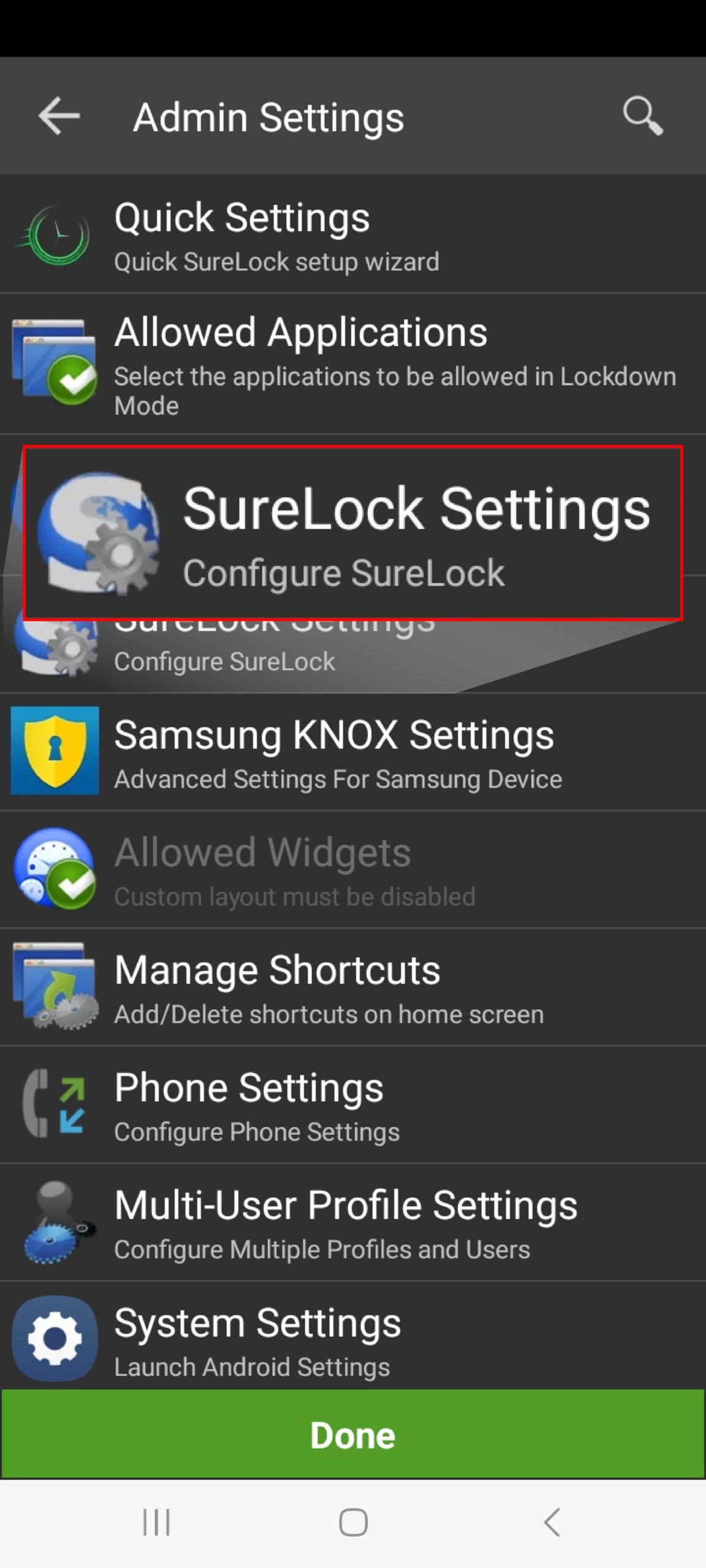
- On SureLock Settings screen, tap Single Application Mode and enable Single Application Mode option
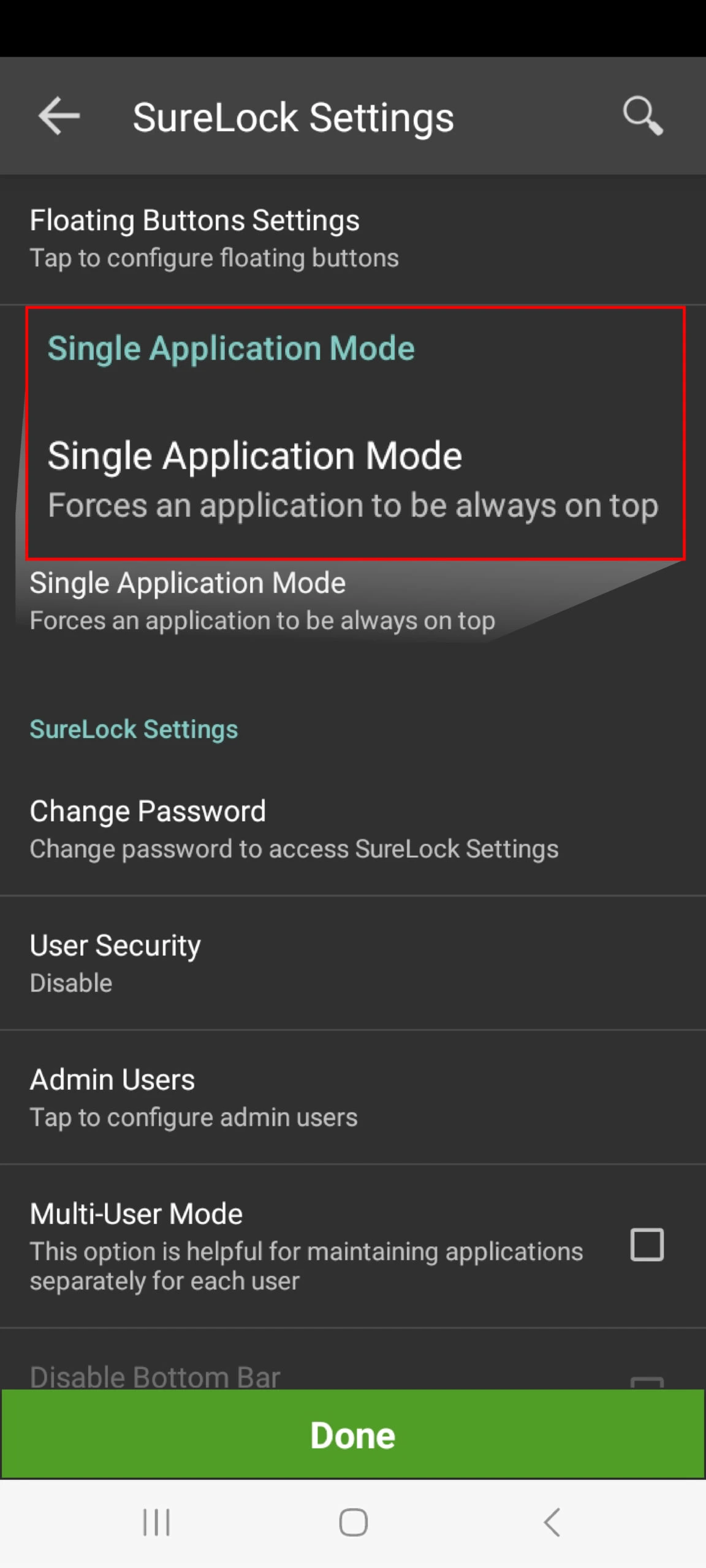
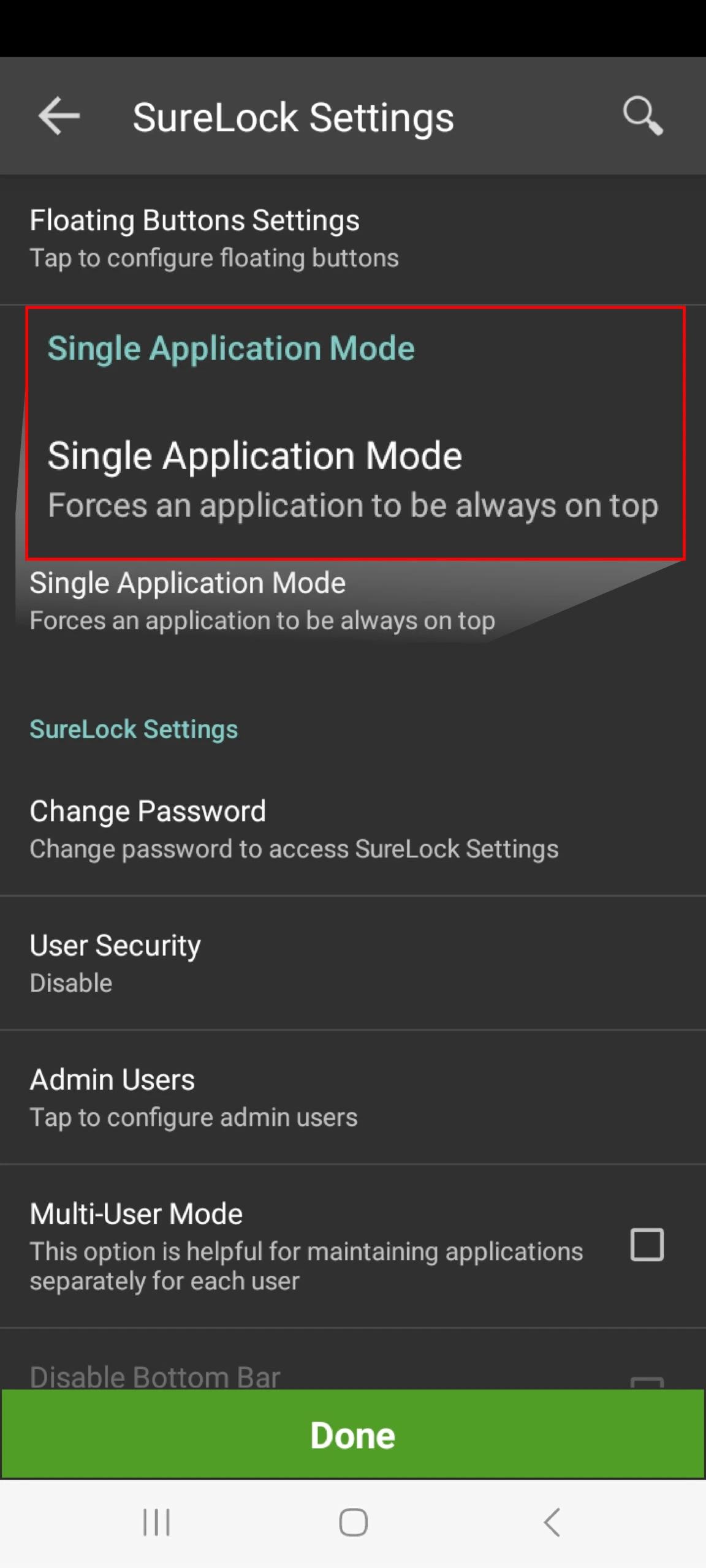
Note: Please read the information message before you tap on OK
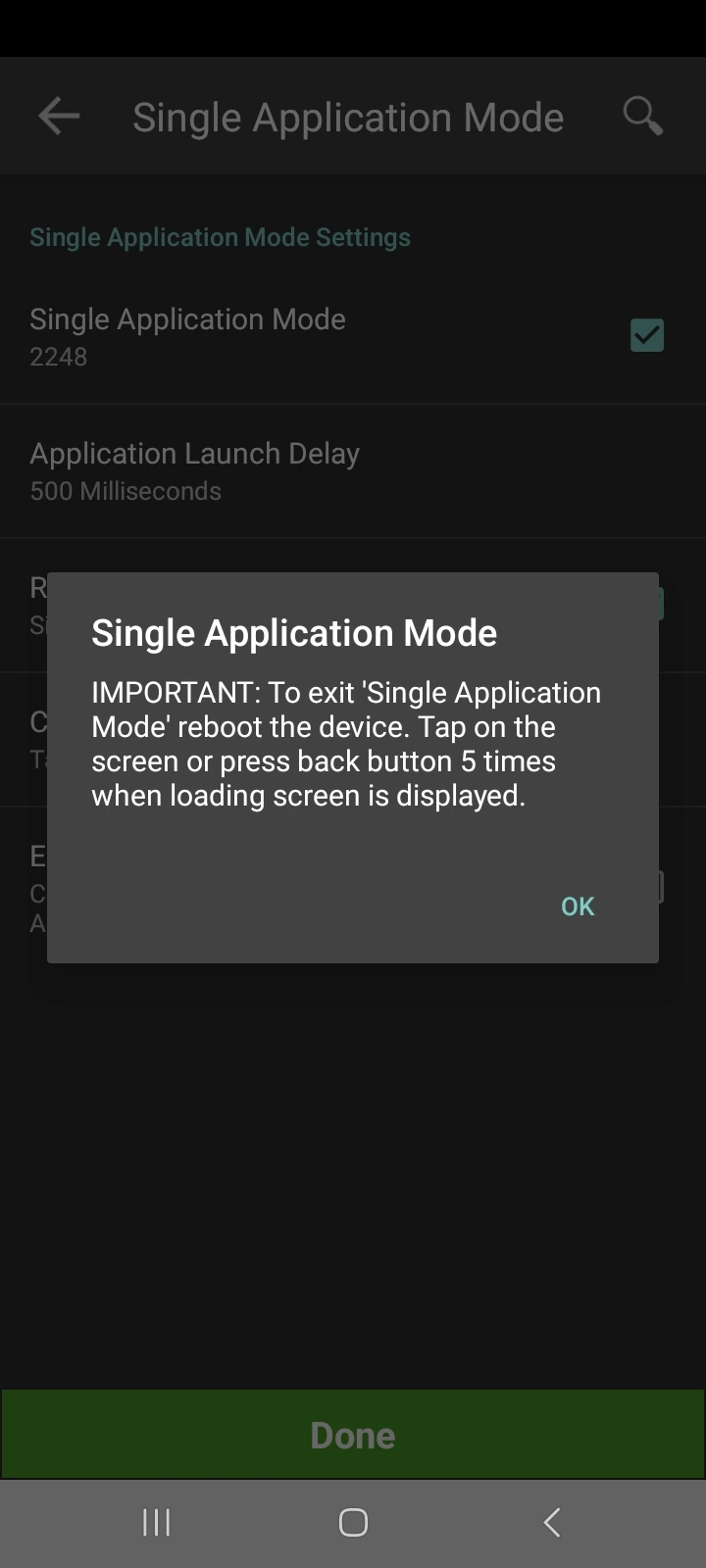
- Return back to SureLock Home Screen. Your application will now run in Single Application Mode, also known as Android Single App Mode.
Note: For Single Application Mode to be enabled, only one application can be visible on SureLock’s Home Screen. If you need to run more than one app internally, you can add other apps to the list of allowed applications as well and mark them as hidden. These hidden applications can be launched when accessed via the application visible on SureLock Home Screen when Android Single App Mode is active.
How to enable Single App Mode on Android devices using SureLock
Conclusion
From interactive kiosks in museums to self-service ordering stations in restaurants, the applications of Single App Mode are extensive and continue to evolve. Enabling Single App Mode on your fleet of Android devices is a versatile and cost-effective solution that transforms standard Android devices into specialized tools across diverse industries. By restricting device functionality to a single designated app, this mode enhances user focus, simplifies operation, strengthens security, and streamlines workflows.
Now let’s circle back to our initial search query “Can Android run only one app?” This query now has an answer: SureLock by 42Gears!
SureLock can be used to set up Single Application Mode or Single App Mode on your Android tablets, Android smartphones, or Android rugged devices if you want to run only one custom app on Android and prevent users from running anything else. It’s the simplest solution for anyone who needs to know how to run one app on Android devices.
FAQs
1. How does Single App Mode make your workforce more efficient?
Single App Mode enables users to stay laser-focused on the task at hand by limiting devices to one specific work app. This mode enhances your workforce’s efficiency by minimizing distractions, enabling them to complete tasks faster, and minimizing errors associated with multitasking.
2. How do I turn my Android devices into single app kiosk mode?
Depending on your use case, you have two options to active single app kiosk mode on your Android devices:
- Basic Management: You can use the built-in ‘Screen Pinning’ feature. Enable it from your device settings app, open your desired app, and pin it to the screen like a virtual lock. This restricts access to other apps until you unpin it. This option, however, does not effectively cater to most business requirements, because it provides limited security as the pinned app can be easily bypassed through button presses or swipes, does not support multi-app kiosk modes, and offers an inconsistent user experience across different Android versions and device models.
- Advanced Management: For advanced management capabilities, you can use SureMDM, a feature-rich, robust MDM solution, or a stand-alone kiosk management solution, like SureLock. Advanced kiosk management and security features include disabling access to device settings, preventing the user from turning off the device, restricting access to hardware keys ,app analytics report, custom branding capabilities and many more.
3. What are the differences between App Pinning and SureLock Android Kiosk Mode?
App Pinning offers basic lockdown features that are suited towards consumers and individual users, whereas SureLock offers advanced kiosk mode features that cater towards enterprise and business needs.
| Features | App Pinning | Kiosk Mode |
|---|---|---|
| Lock Apps | Supported | Supported |
| Automatically load Kiosk apps when booting up | Supported | Supported |
| Disable Access to Device Settings | Not supported | Supported |
| Block call and SMS notifications | Not supported | Supported |
| Block notifications from other apps | Not supported | Supported |
| Prevent device going to sleep | Not supported | Supported |
4. What are the benefits of using Single Application Mode?
Single Application Mode enhances security by restricting device access to one designated app, boosts productivity by minimizing distractions, and ensures consistency and reliability in various industries. This mode can also block access to device settings and hardware keys to prevent any type of device misuse.
5. What devices support Single Application Mode?
Single Application Mode is supported on all types of Android devices, including smartphones, tablets, and dedicated kiosk devices from manufacturers like Samsung, Google, and Lenovo, and can be managed through MDM or EMM solutions.
6. Is Single Application Mode secure?
Yes, Single Application Mode is secure as it minimizes the risk of unauthorized access, and data breaches by restricting device functionality to a single designated app, complemented by Android's built-in security features and additional measures like encryption and remote management.